
Multiple targets and groups
Monitor destinations independently and organize live target tabs.
Independent monitoring
Each target has its own session, state, interval, probe options, and history. Pausing, stopping, restarting, or configuring one target does not apply that action to every target.
Choose All Targets to see destinations together. Select a row to use it as the graph and toolbar context; open its target tab for detailed hop analysis. The overview refreshes as new snapshots arrive and uses the current historical time window.
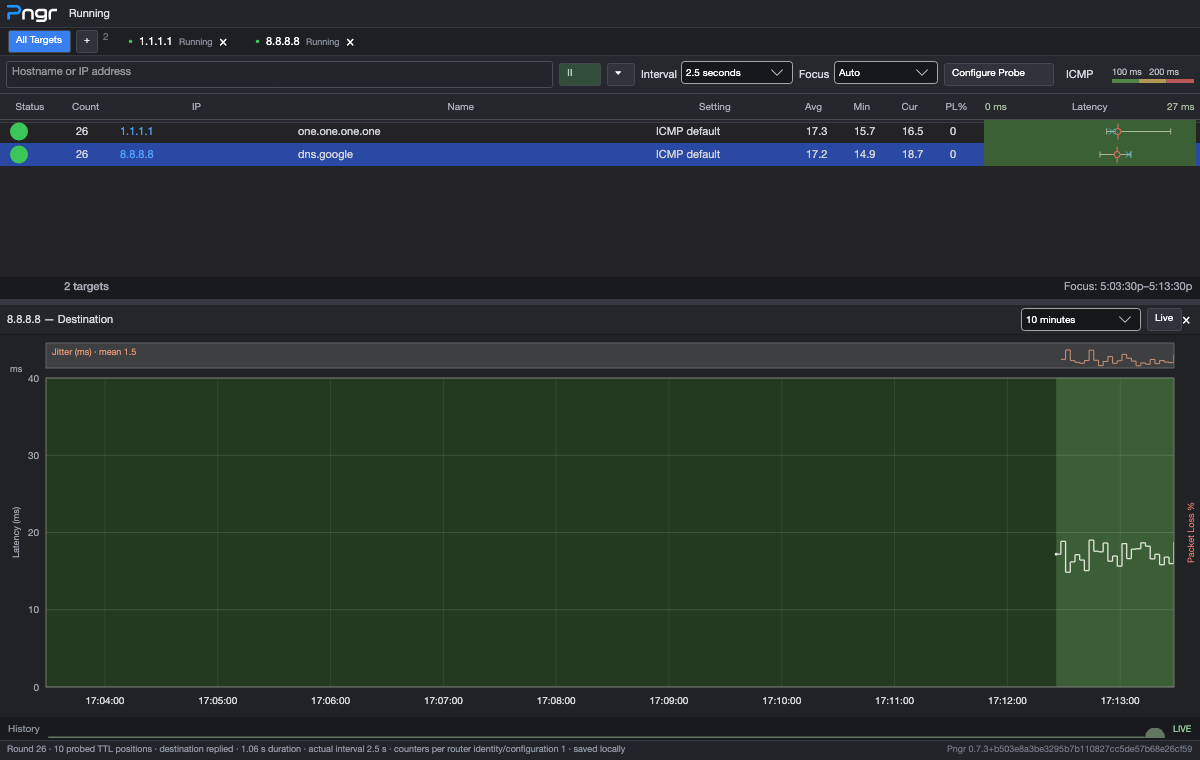
Add another destination with + or New Target. See creating targets for batch input and hostname resolution.
Assign groups
- Right-click a live target tab.
- Choose Assign group….
- Enter a group name and select Save.
Group names are trimmed, with a maximum input length of 80 characters. An empty name becomes Default. Groups are stored in the workspace and can scope alert rules. They organize targets; assigning a group does not create a shared probing engine or automatically alter every member's configuration.
Keep configuration scoped
Select the intended target before opening Configure Probe. Edits apply to that live target's next round. Creating a new target uses the new-target draft, remembered options, or forced Monitoring defaults as configured.
A probing profile provides reusable probe options. Profiles and groups are different: profiles describe how to probe; groups identify which targets belong together.
Workspace and sessions
Workspace restoration can retain targets, groups, selected profiles, and probe choices. Saved session history is separate from the live target tabs. Closing a target retains its saved measurements. Restarting creates a new session rather than erasing the earlier session.
Monitoring occurs while Pngr runs. Workspace restoration does not make Pngr a background service.