
Creating monitoring targets
Add hostnames and IP addresses with independent probe settings.
Add a target
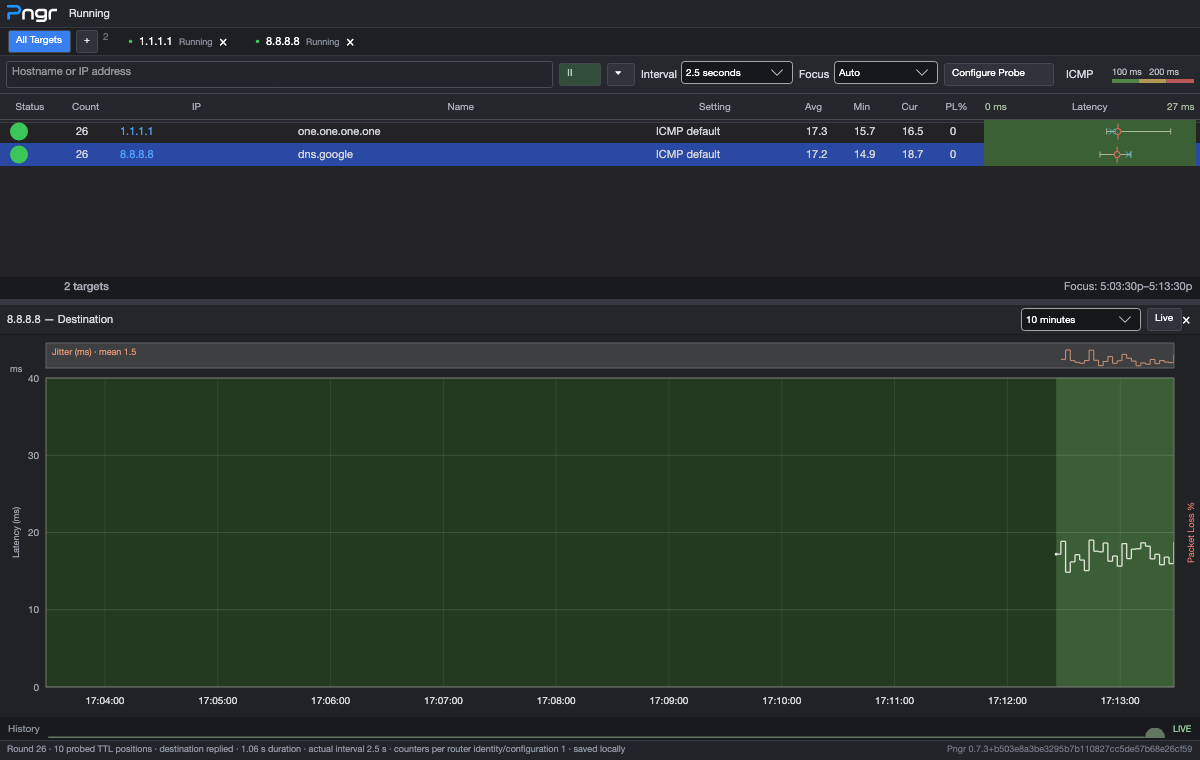
Select + beside All Targets or New Target in the monitoring actions menu. Enter a hostname or numeric IPv4/IPv6 address and press Enter or start monitoring.
Pngr also accepts an HTTP or HTTPS URL and uses its hostname. This does not perform an HTTP request or monitor the URL path. Choose TCP and a destination port separately if you want TCP endpoint monitoring.
For example:
example.com
192.168.1.1
2001:db8::1
2001:db8::1 is an IPv6 documentation example; replace it with a reachable address on your network.
Add several targets
Separate targets with commas, semicolons, spaces, or newlines:
192.168.1.1, example.com; 1.1.1.1Targets added together use the new-target configuration at the time you add them. Each target then monitors independently. Adding the same target text again while it is running or paused selects its existing tab rather than creating another active session.
Resolution and configuration
Hostnames are resolved when a session starts. Without a selected source address, Pngr prefers IPv4 if the name has an IPv4 address, then falls back to IPv6. A selected source address influences the preferred address family. Restart a target to resolve its hostname again.
Use Configure Probe before starting to set options for the new target. For an existing target, select its tab first and then open Configure Probe. Existing-target edits apply from the next measurement round and preserve saved history.
New targets normally reuse the last-used probe options. The Monitoring settings can instead force configured defaults for new targets.
Groups and saved history
Right-click a live target tab and choose Assign group… to organize it. Blank group names become Default. See multiple targets and groups.
If DNS resolution or startup fails, Pngr shows the error in its status area. Check the hostname, local connectivity, and selected source before trying again.